VROC
These instructions show how to set up a race at Monza on 1.UKGPL. The passwords have been omitted for obvious reasons. Other servers used by UKGPL can be started in the same way but the IP Address and possibly the port number will be different.
1. Open up VROC and select "Launch remote GPL..." from the Host drop down menu:

2. The "Connect to Remote Host" popup menu will appear. Type in the IP Address, Remote Password and Port number:

3. When the main window pops up go to the Race List tab. Click the Add button and select the track, set the race type and practice length. Click OK.

4. In the Server tab select the following options:
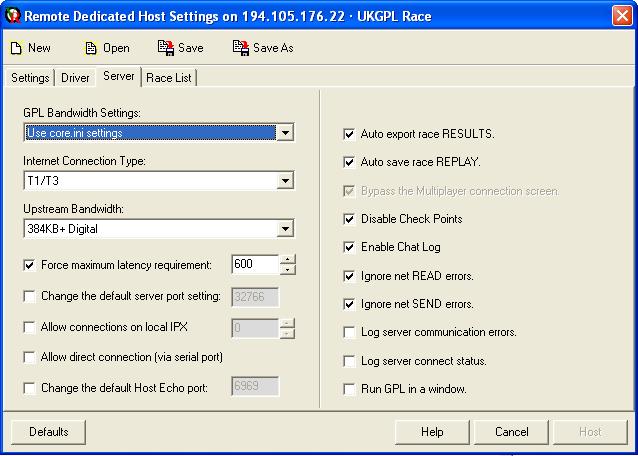
5. In the Driver tab select the following options:

6. In the Settings tab select the following options:

7. Once the passwords have been inputted the "Host" button will become active and the server can be started. A popup should appear checking you want to launch the server (just hit the Launch button) and then another confirming that the server has started. This popup can be cancelled by the OK button.
Notes:
- After having inputted all the data, the settings can be saved in a .grs file. This file can then be loaded and modified as necessary in order to start other races.
- If it is necessary to shut down the server manually you will need to join the race with the BOSS password. Join as you would normally as a driver but type the driver's password then a slash and then the BOSS password. For example if the driver's password is john and the BOSS password is surtees then you would type john/surtees. Once you have joined the race type !shutdown in chat to halt the server.
- Don't shut the server down manually under normal circumstances. You must let the server shut down automatically to ensure the race results and replay are saved correctly.
|